ClassDesk, the family portal
One login for everything your child does with us
Every Atlantic Ivy family gets a ClassDesk account. It shows the next class and where it is, the materials from each session, homework with the coach's written feedback, and a report at midterm and at the end of term. Messages to the coach go through it too.
portal.atlanticivy.com
After you enrol
What a parent sees in a normal week
Coaches post materials after each session, mark homework before the next one, and write a report halfway through the term and again at the end. These three screens are where that lands.
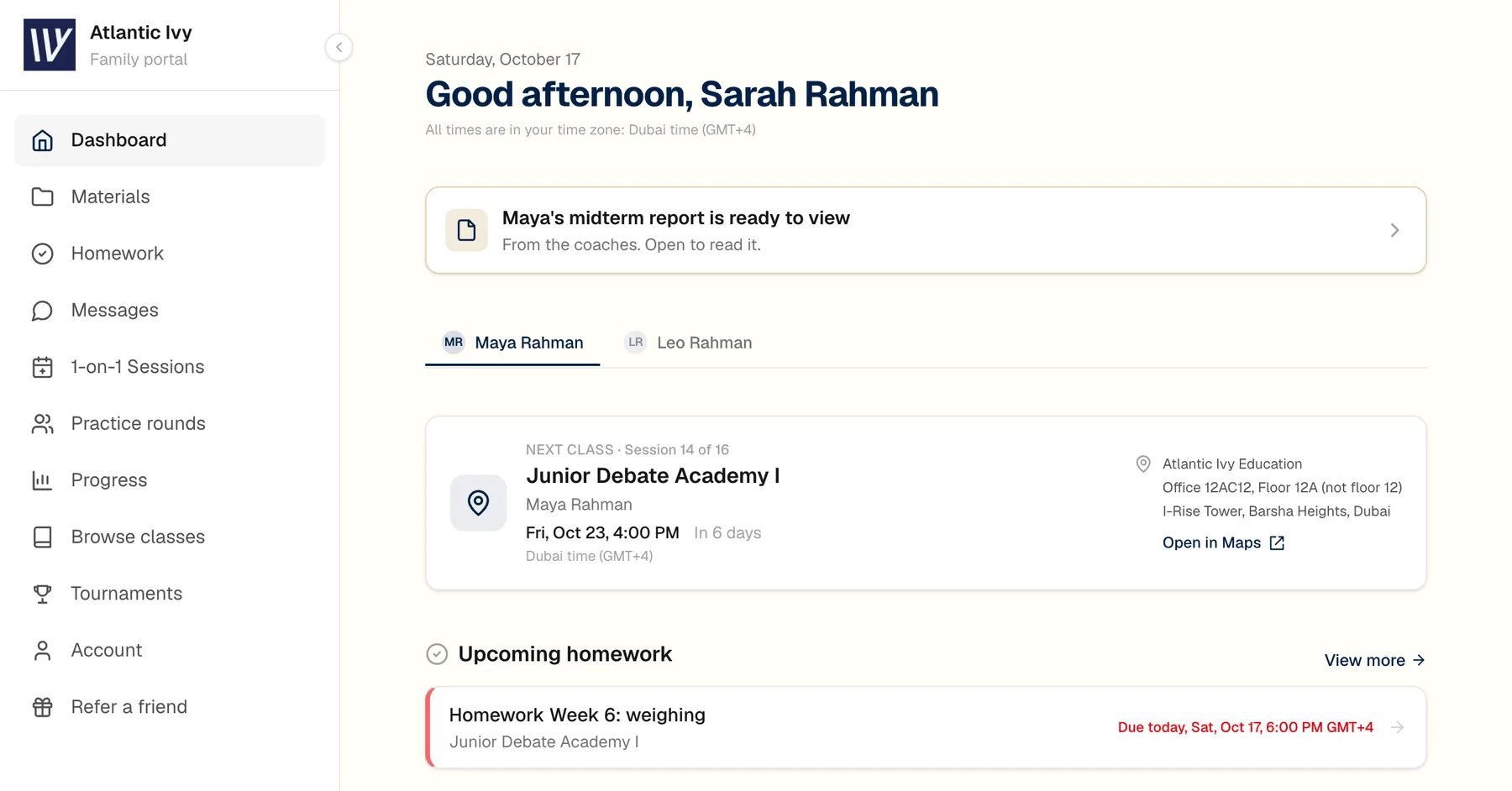
1. The dashboard
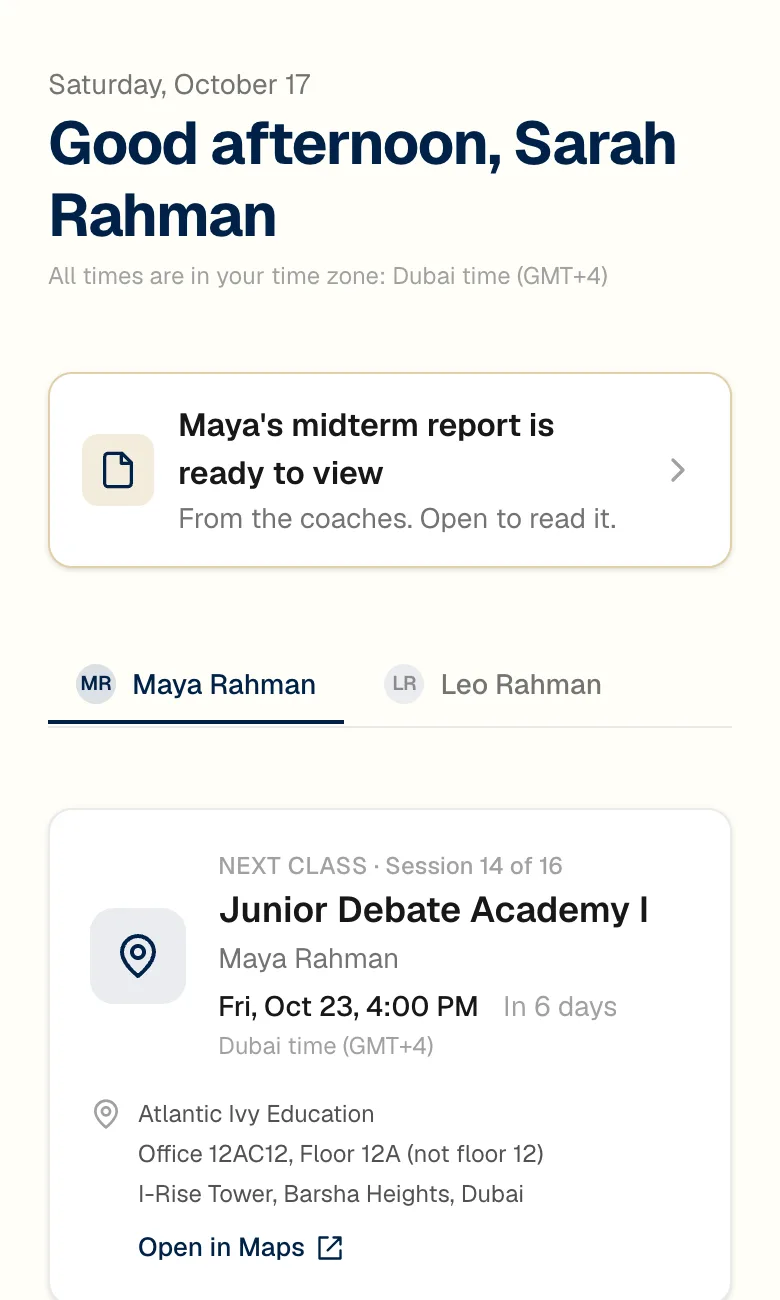
The next class, at a glance
Session number, day and time in your own time zone, where the class is, and any homework still to hand in. If a report has been published, it sits at the top until you open it.
2. Homework
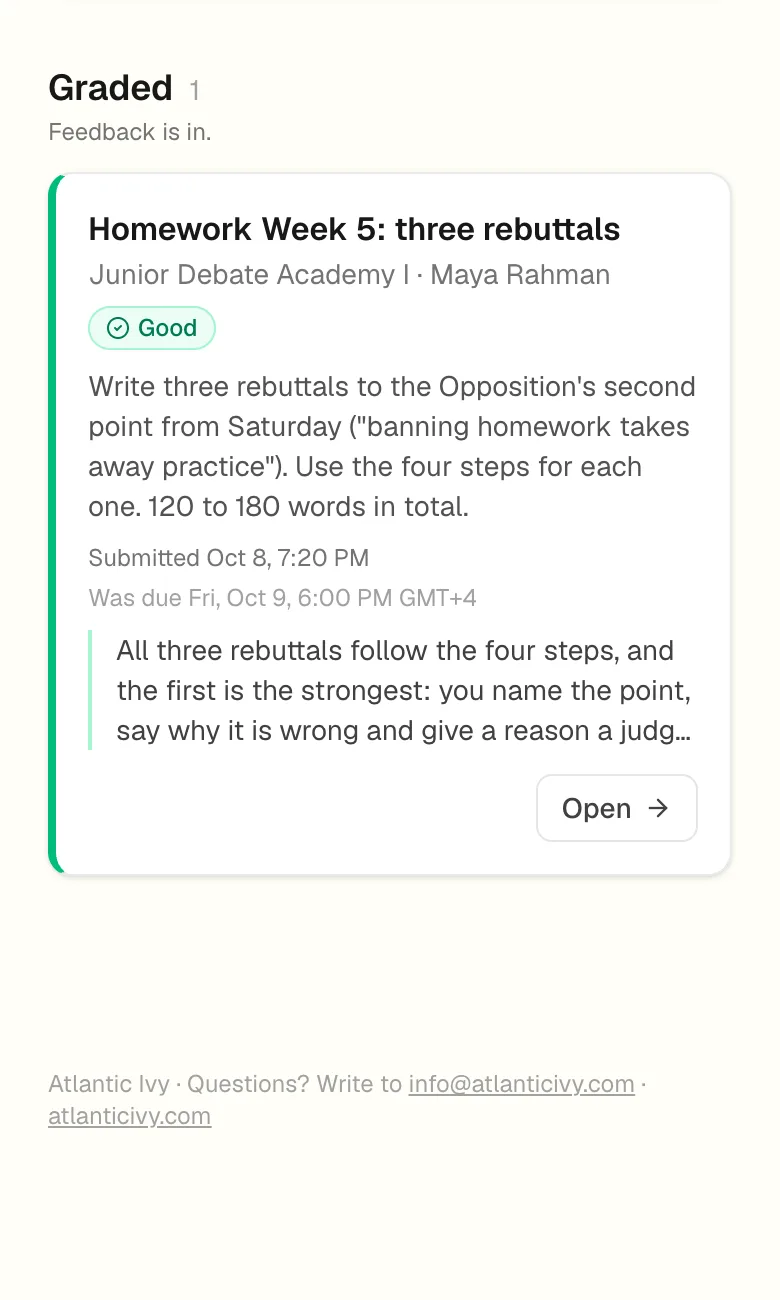
Returned with written feedback
Each task is graded and comes back with a few sentences from the coach on what worked and what to fix before next week. Students hand in text or files from the same screen.
3. Reports
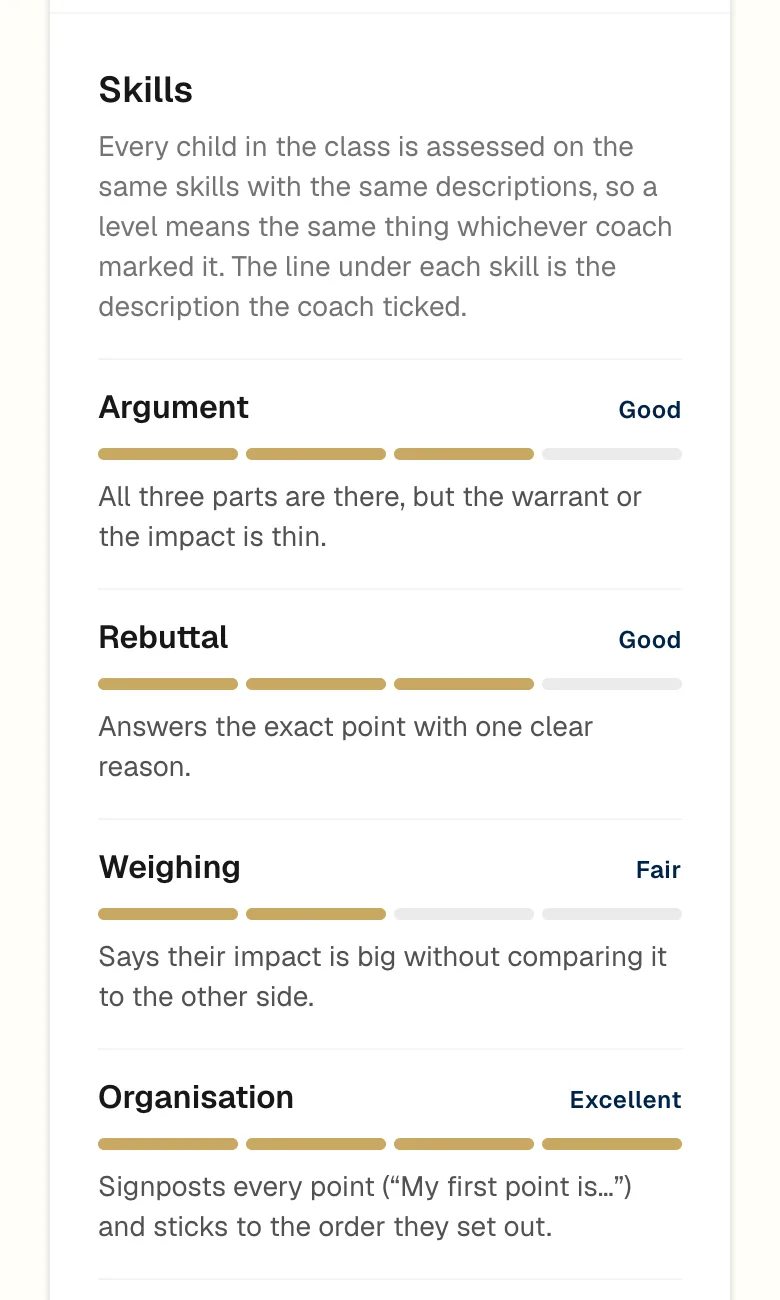
A report at midterm and at the end of term
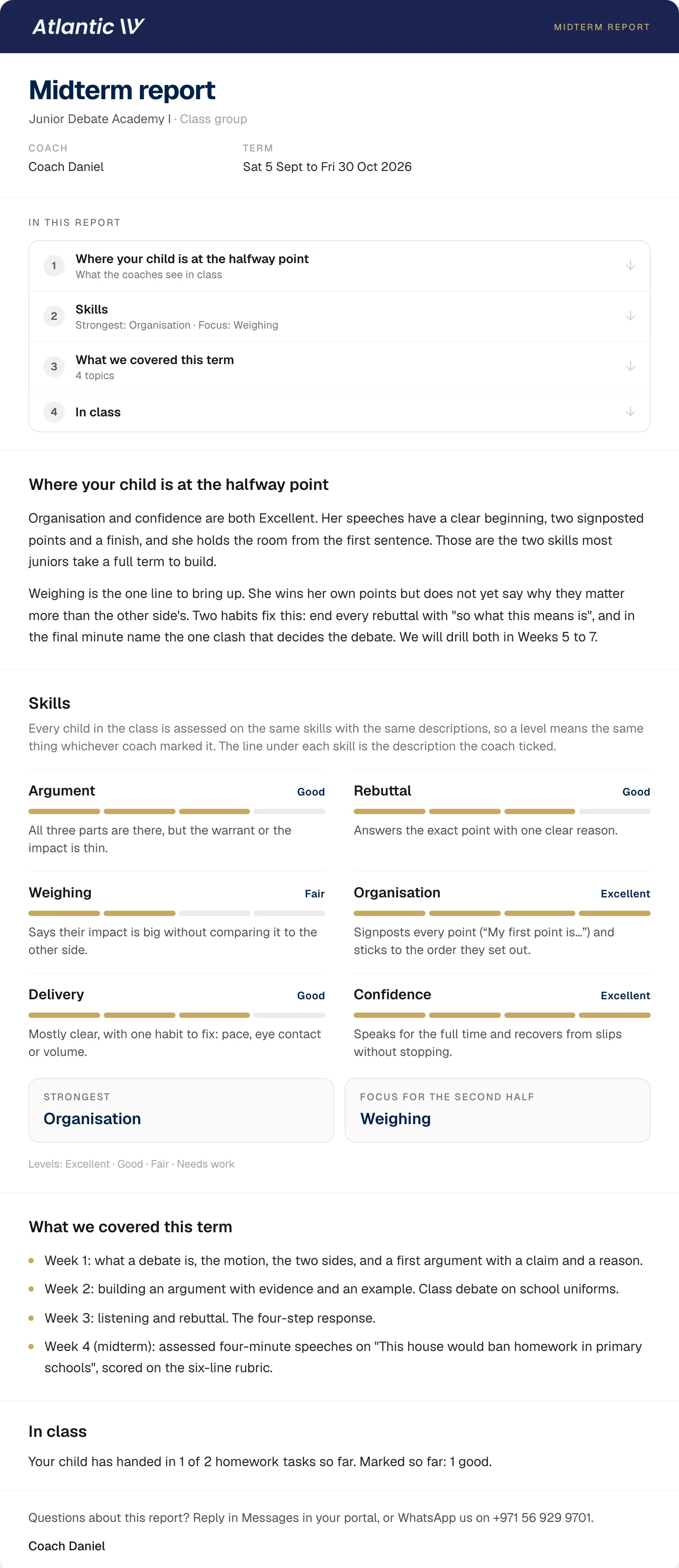
Six skills on the same four-step scale for every child in the class, each with the coach's description of where your child is, then the one thing to work on next. A full sample report is below.
A sample report
What a midterm report looks like
This is a complete midterm report from the demonstration family's class, with the child's name taken out. The coach writes the opening note and the next step.
The six skill lines use the same descriptions for every child in the class, so a level means the same thing whoever marked it. Families get one of these halfway through the term and another at the end.

Between classes
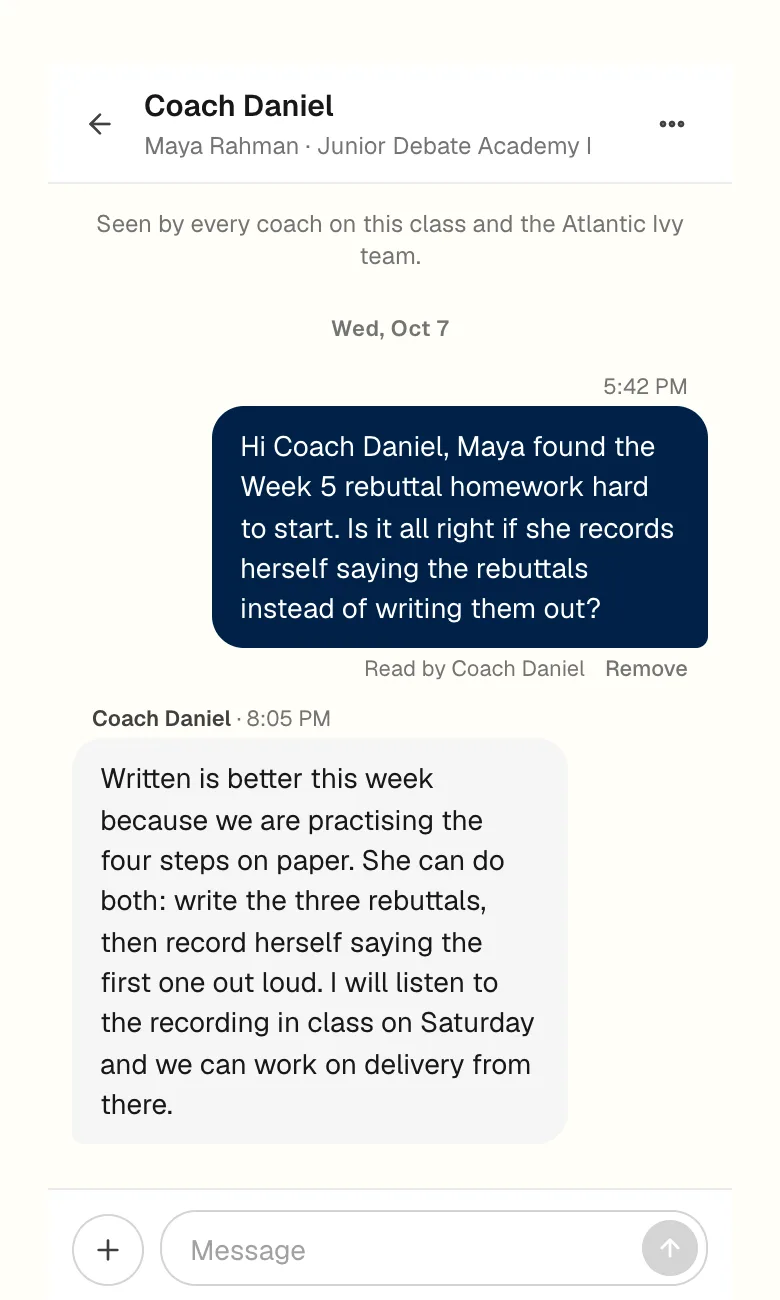
Write to the coach from the class page
Each class has its own thread between you and the coaches who teach it. The office sees it as well, so nothing waits on one person's inbox. You get an email when a reply arrives, and the coach gets one when you write. The thread stays in the portal, so the answer is still there the following term.
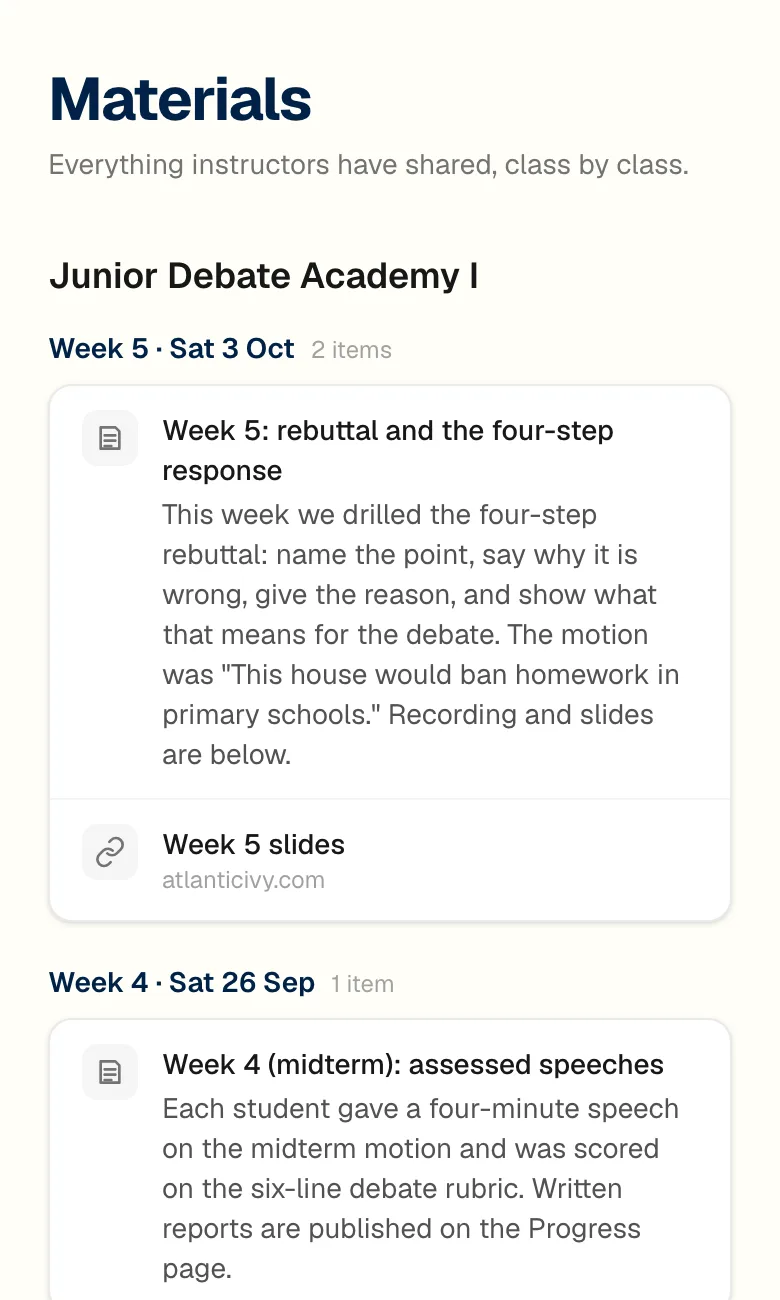
Materials from every session are kept class by class: the coach's note on what was covered, plus the slides and any recording. A student who missed a Saturday can catch up before the next one.
Beyond the weekly class
Tournaments, practice rounds, new classes and private sessions
The same login covers the rest of what a family does with us during a term.
Tournaments
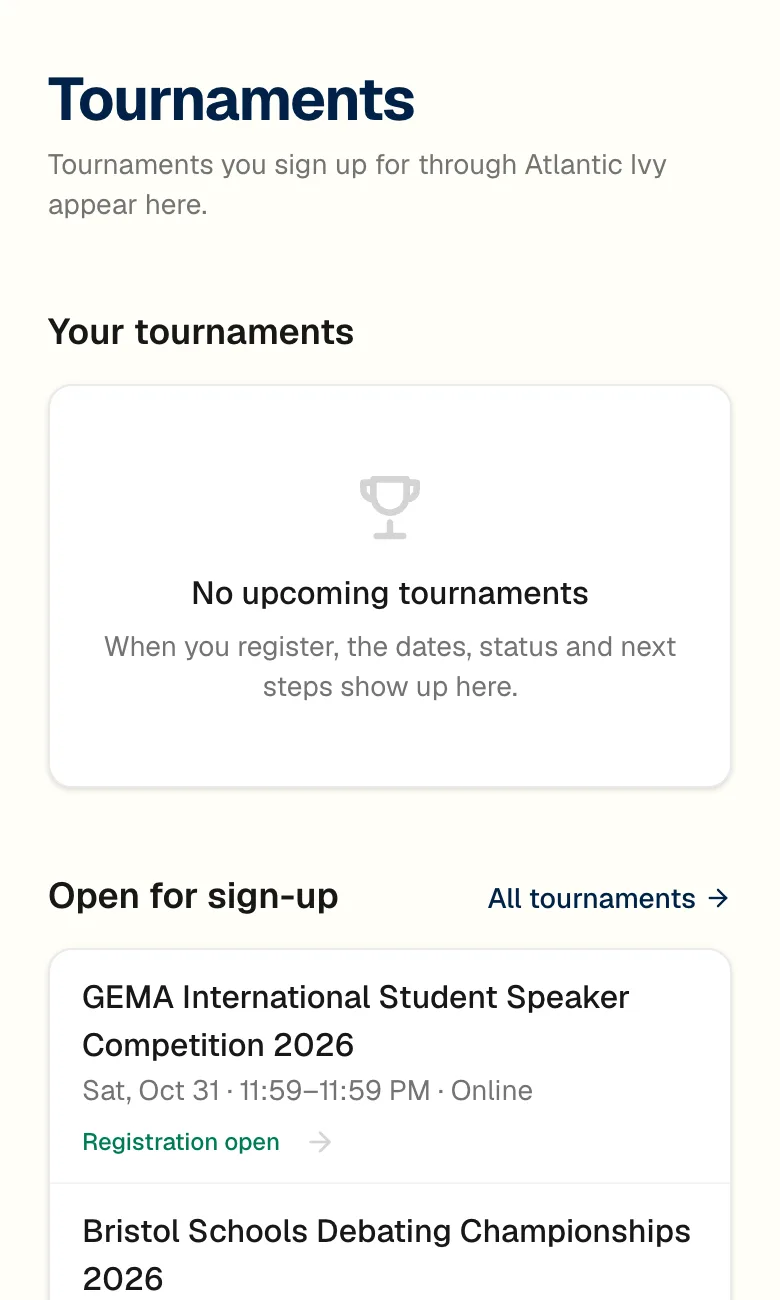
Tournaments open for sign-up through Atlantic Ivy are listed with their dates and format. Once you register, the entry shows its status and next steps on the same page.
Practice rounds
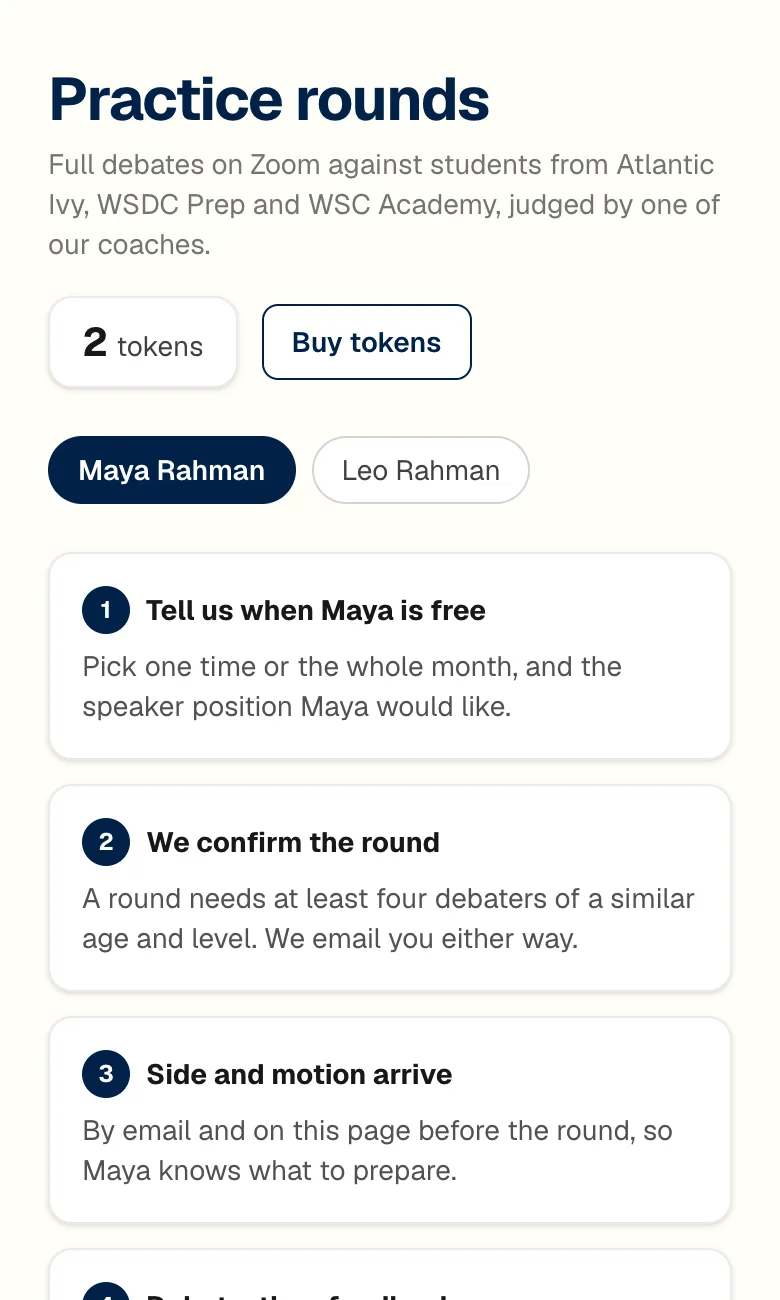
Debate students can join full practice debates on Zoom against students from Atlantic Ivy, WSDC Prep and WSC Academy. One of our coaches judges the round and sends a written ballot afterwards.
Browse classes
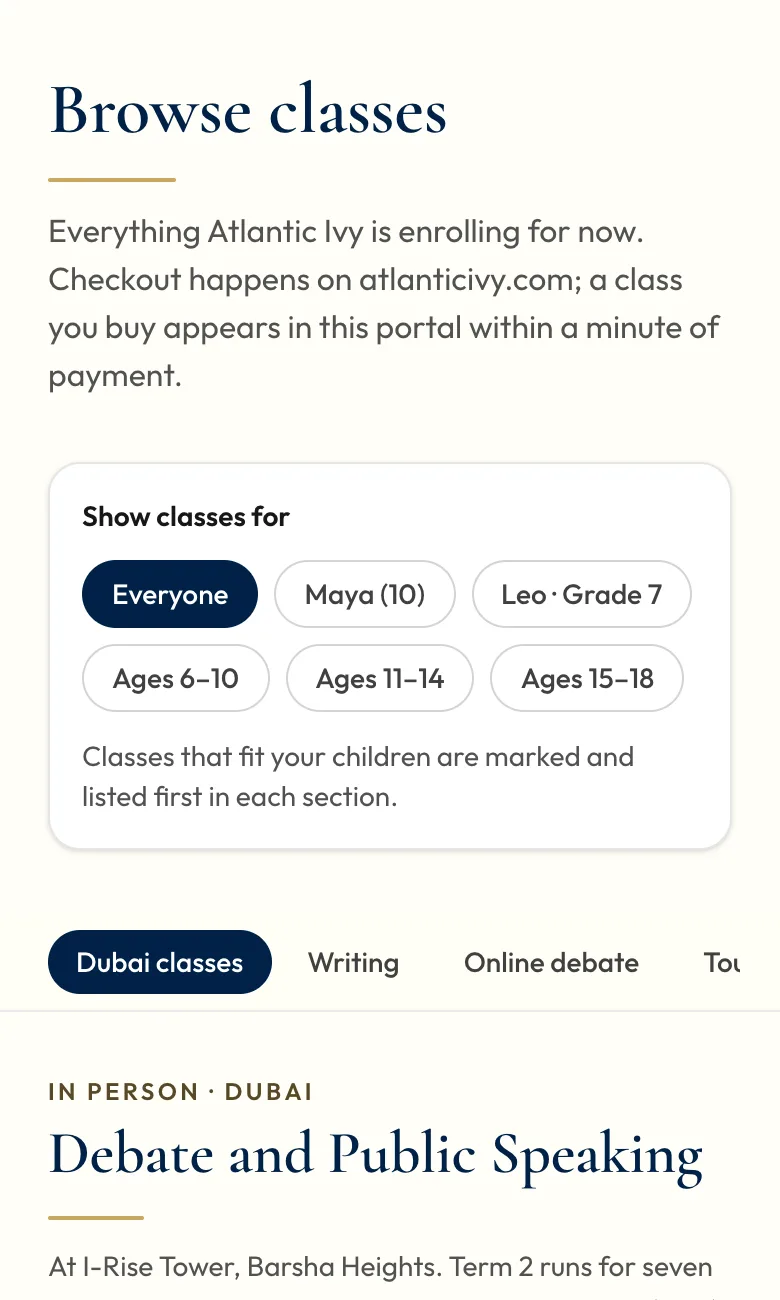
Everything we are enrolling for, with prices and class times. Classes that fit your child's age are marked and listed first. Payment happens on atlanticivy.com, and the new class appears in the portal within a minute.
1-on-1 sessions
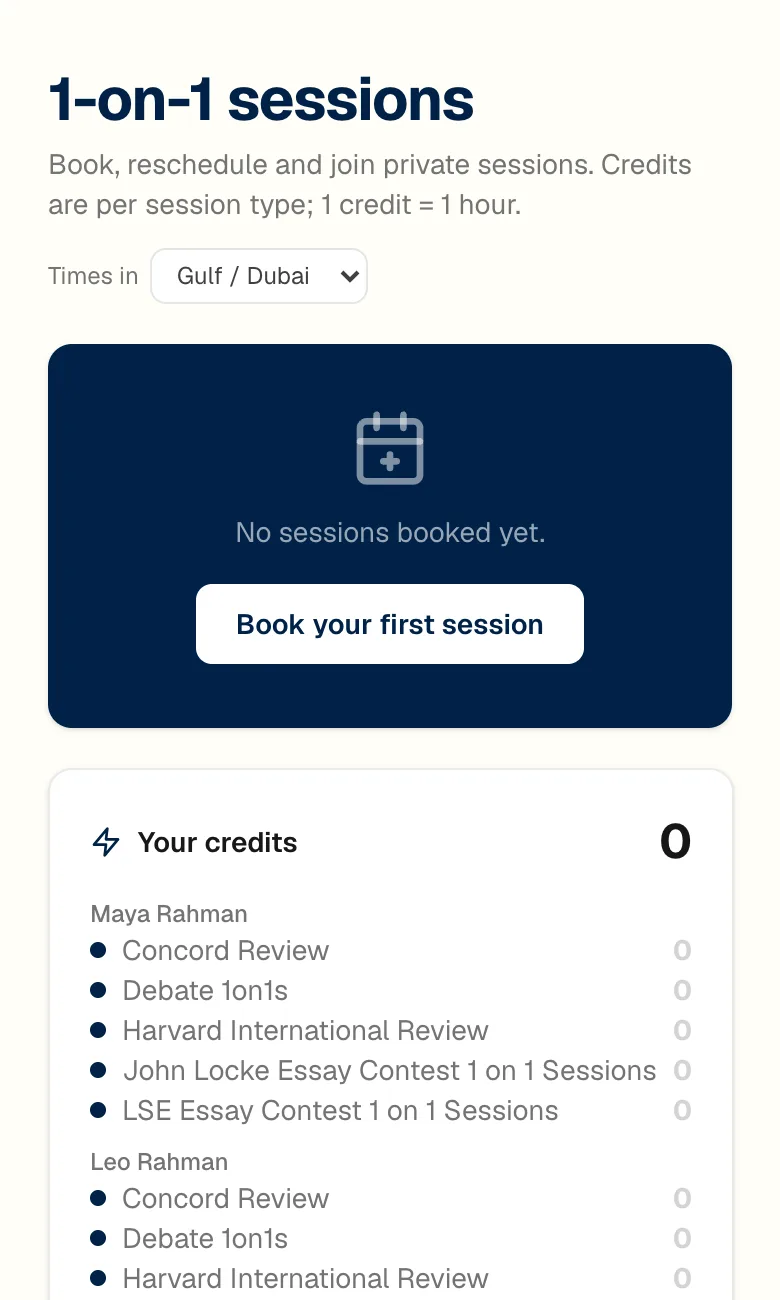
Book or move private sessions with a coach and join them from the same page. Credits are bought by the hour, and the times are shown in whichever zone you pick.
Each debate class comes with two practice rounds a season. Public speaking classes do not. Extra rounds are USD 30 each, 120 for five or 200 for ten.
The small things
Built for a parent on a phone
A parent usually opens the portal on a phone, between other things, and sometimes from a different time zone to the class. These details follow from that.
One account per family
All your children sit under one login. Another parent or guardian, or an older student, can be added with their own password and sees the same portal.
Your time zone, not ours
Class times and deadlines are shown in the zone your device is in, with the zone named next to the time, so a grandparent in London and a parent in Dubai both see the right hour.
Works as an app on your phone
Add the portal to your home screen from the Account page and it opens like an app. There is nothing to download from an app store.
Emails only for what you want
Homework, 1-on-1 bookings, tournament reminders, announcements and messages each have their own switch. Sign-in links, and notices that a session you booked was moved or cancelled, always come through.
Messages that reach the right person
A message from a class page goes to every coach on that class and to the office, so a question is answered even when one coach is away.
Refer a friend
Every family has a referral code. A family you refer gets 10% off their first course, and you get 10% of what they pay as credit on your next invoice.
Getting in
How you get your login
When you enrol, we email a login to the address you paid with. Sign in at portal.atlanticivy.com or follow the link in any portal email. If a child studies with one of our other academies as well, the same account switches between them.
If you enrolled earlier and cannot find the email, write to info@atlanticivy.com or use the forgotten-password link on the sign-in page.
Not enrolled yet?
The portal comes with any class, in Dubai or online. The simplest way to see it is to book a free trial lesson and ask us for a look during the visit.
Screens from the family portal, October 2026. The family and the coach shown are a demonstration account, so no real student's work or coach's name appears.